
Nano Banana Interior Design Generator
Upload a photo of your room and use Nano Banana Pro to explore a realistic redesign before making costly changes. Describe the interior style, furniture, materials, color palette, and lighting you want while asking the model to preserve the room's layout, windows, doors, and camera angle.
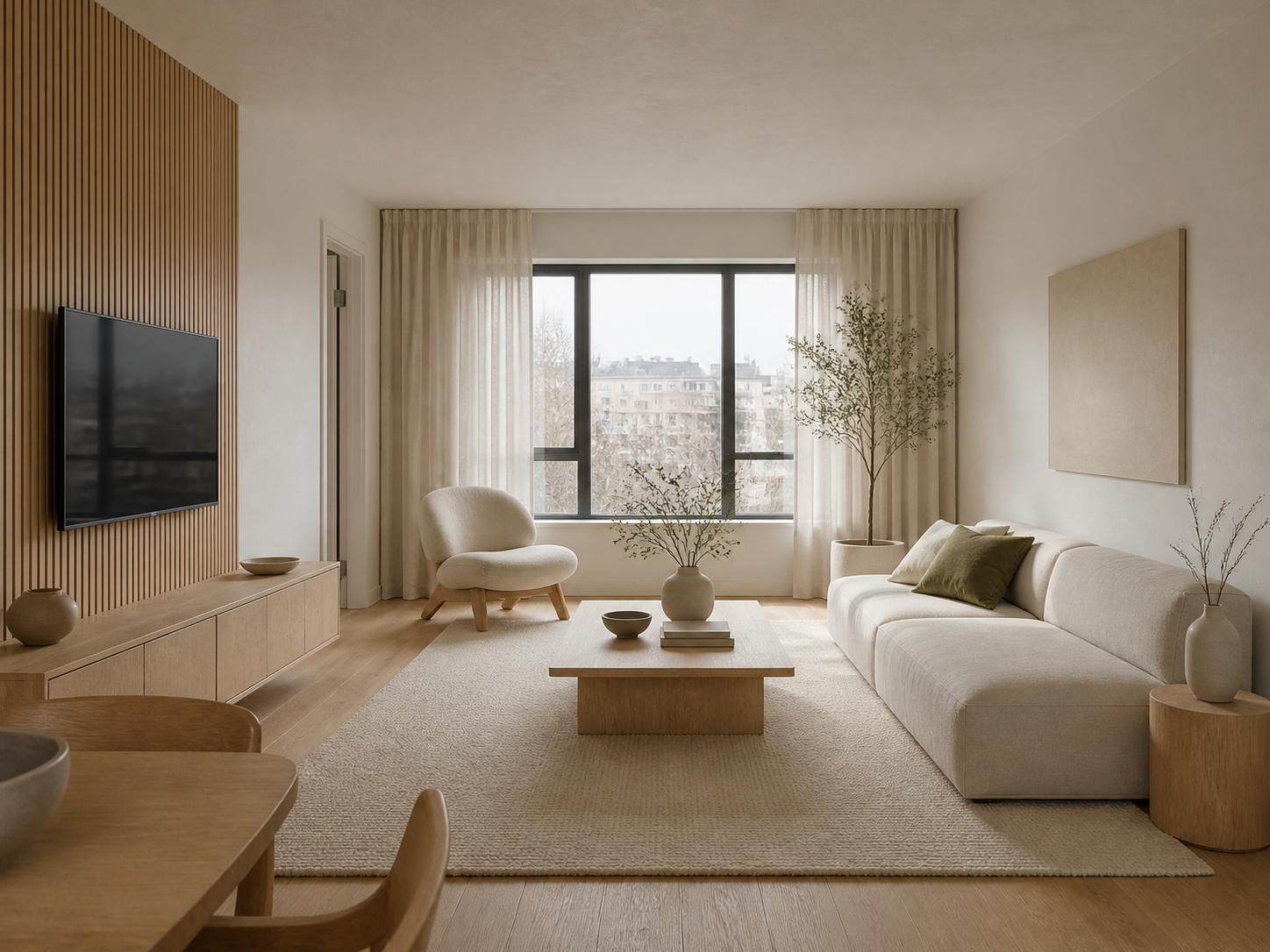
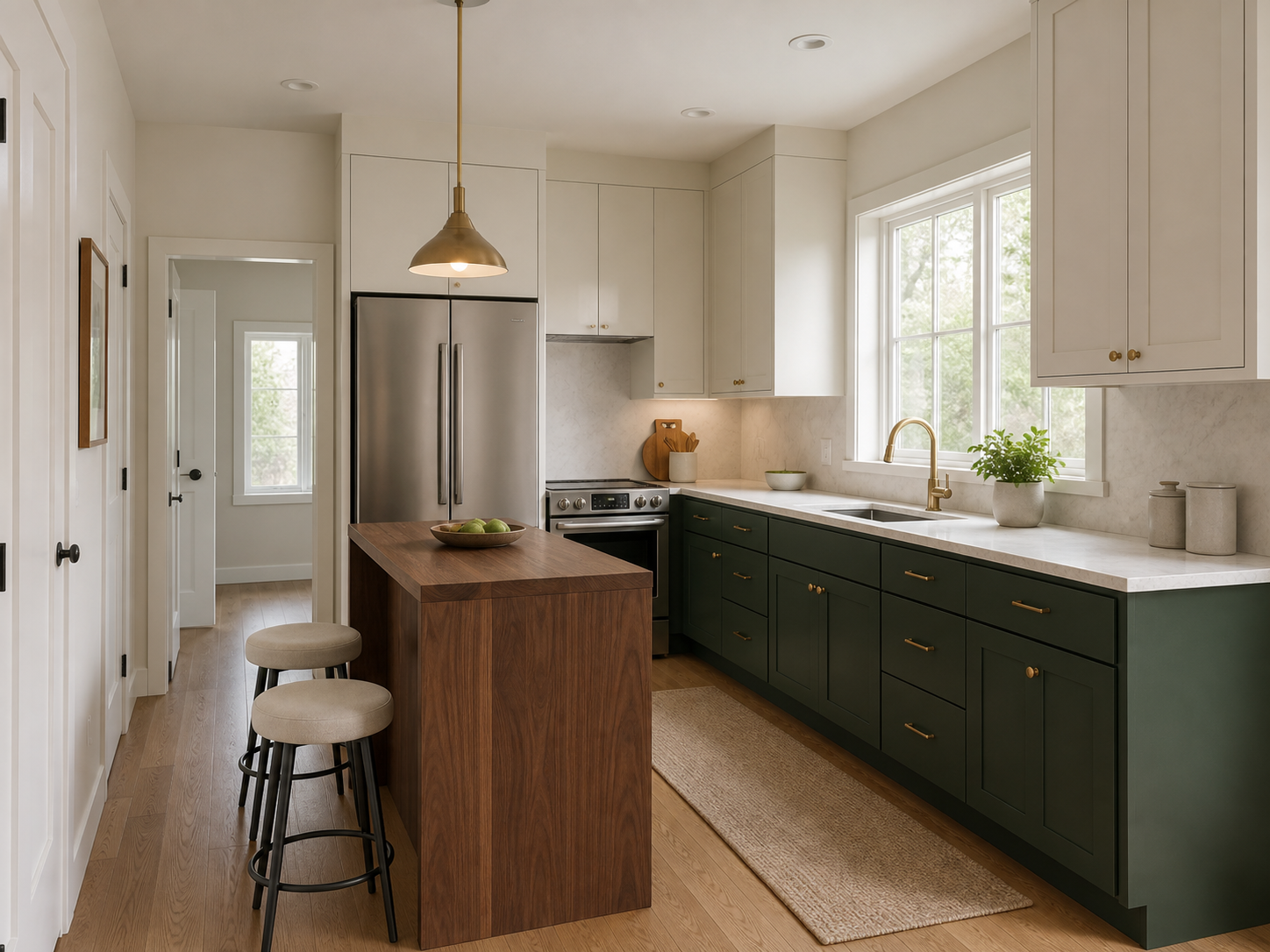
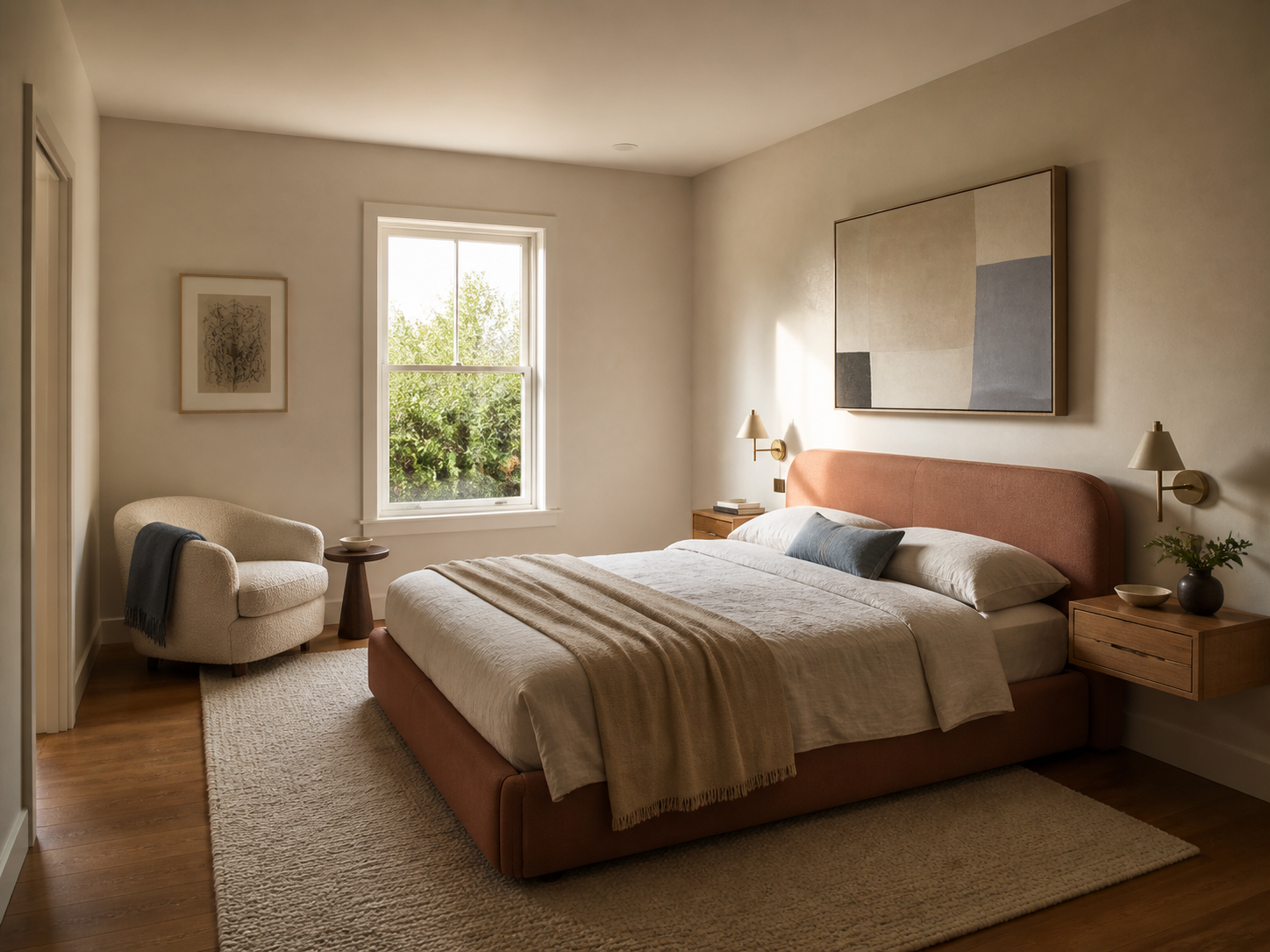
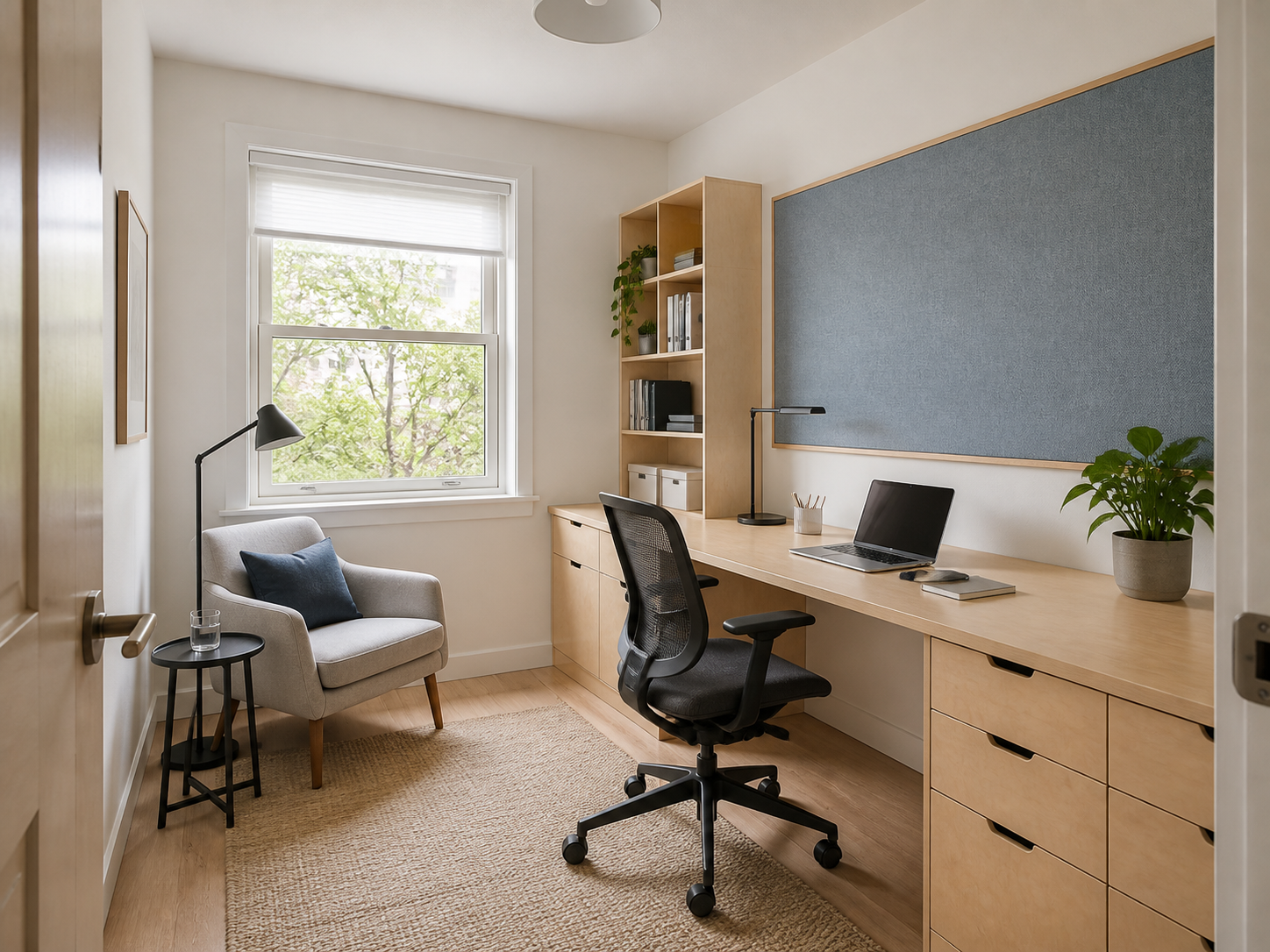
Example results — your generated image will appear here
Nano Banana Prompts for Interior Design
Use a complete prompt for a living room, kitchen, bedroom, or home office. Upload your own room and keep the geometry-preservation instructions intact.
“Redesign the uploaded living room in a calm Japandi style. Preserve its exact dimensions, wall openings, window placement, ceiling height, floor, and camera viewpoint. Replace only furniture, finishes, decor, and lighting. Add a low oatmeal sofa, pale oak coffee table, slatted oak media wall, one sculptural chair, linen curtains, a wool rug, and restrained ceramics. Use warm-white limewash walls, a muted olive accent, and soft overcast daylight. Keep every object at a realistic scale with clear circulation. No structural changes, extra windows, warped walls, floating furniture, people, text, logos, or watermark.”
“Remodel the uploaded kitchen with deep forest-green lower cabinets, warm-white upper cabinets, lightly veined stone counters, brushed brass hardware, and a narrow walnut island with two stools. Preserve the room dimensions, windows, doors, ceiling, appliance locations, plumbing wall, and camera perspective. Keep walkways functional and cabinetry straight. Use natural morning light with a simple pendant above the island. Change only cabinetry finishes, counters, furniture, lighting, and decor. No moved openings, duplicate appliances, distorted doors, impossible island, people, text, logos, or watermark.”
“Turn the uploaded bedroom into a warm contemporary retreat. Preserve the exact room shape, window, doorway, ceiling line, floor perspective, and camera angle. Add a clay-colored upholstered bed, floating oak nightstands, textured neutral bedding, a wool rug, a boucle reading chair, subtle plaster walls, and one dusty-blue accent. Use soft late-afternoon daylight and realistic shadows. Maintain believable furniture dimensions and uncluttered circulation. Do not change the architecture, add openings, warp the bed, crowd the room, add people, readable text, logos, or watermark.”
“Redesign the uploaded small room as a bright functional home office. Preserve its dimensions, window and door placement, ceiling, built-in constraints, floor perspective, and camera viewpoint. Add a wall-length pale birch desk, an ergonomic charcoal chair, compact shelving, a blank soft-blue pinboard, one plant, concealed cable management, and a small reading corner. Use bright neutral daylight and realistic proportions. Keep a clear path from the door to the desk. No structural changes, unsupported shelves, tangled cables, warped furniture, people, readable text, logos, or watermark.”
How to Use Nano Banana for Interior Design
Start with an accurate room photo, direct the changes clearly, and treat each result as a concept preview rather than a construction plan.
Upload a Clear Room Photo
Choose a wide, well-lit photo you own or are authorized to use, with walls, openings, floor lines, and major fixed features visible.
Photograph from a natural standing height and avoid panoramic or heavily distorted lenses.
Remove temporary clutter if you want the model to read the room boundaries more clearly.
Describe the Redesign
Name the room type, style, furniture, materials, palette, and lighting, then list the architectural details that must stay unchanged.
Specify a few anchor materials such as oak, linen, stone, plaster, or brushed metal.
State whether existing furniture should stay, move, be recolored, or be replaced.
Generate and Review
Compare the preview with the source photo and refine one variable at a time until the direction feels coherent.
Check doors, windows, walkways, furniture scale, material transitions, and shadow direction.
Confirm dimensions, costs, codes, and feasibility with qualified professionals before purchasing or building.
Explore a Complete Room Makeover
Direct the visible design decisions that define the mood and function of a room while preserving its recognizable shell.
Interior Styles
Compare Japandi, mid-century modern, Scandinavian, industrial, coastal, traditional, maximalist, and other coherent directions.
Furniture and Layout
Test sofas, tables, beds, storage, seating groups, and circulation without committing to a physical purchase.
Materials and Finishes
Preview wood species, stone, tile, plaster, metal, textiles, cabinetry, flooring, and wall treatments together.
Color Palettes
Try neutral, earthy, cool, saturated, tonal, or high-contrast palettes across walls, furniture, and accents.
Lighting and Mood
Explore daylight, pendants, sconces, lamps, warm evening scenes, and layered task lighting with believable shadows.
Decor and Styling
Add rugs, curtains, art, plants, ceramics, and restrained accessories that support the room instead of overwhelming it.
Interior Ideas for Real Decisions
Create fast visual options for everyday rooms, client conversations, and early design exploration.
Homeowners and Renters
Compare paint, furnishings, and decor before spending money, while avoiding permanent changes in rental-friendly concepts.
Interior Designers
Turn an initial brief into several visual directions for faster mood, palette, and material discussions with clients.
Property Presentation
Explore virtual furnishing and renovation concepts for an empty or dated room without presenting the image as an exact promise.
Nano Banana Interior Design FAQ
Answers about room photos, prompts, layout preservation, design styles, realistic results, and responsible use.
How do I use Nano Banana for interior design?
Upload a clear room photo, choose Nano Banana Pro, describe the desired style, furniture, materials, palette, and lighting, then explicitly list the walls, windows, doors, floor, fixed features, and camera viewpoint to preserve. Review the output against the source and refine one change at a time.
What is a good Nano Banana interior design prompt?
A useful prompt identifies the room, desired style, anchor furniture, exact materials, color palette, lighting, elements that must remain, and unwanted changes. The four gallery prompts are designed to be copied and adapted to your own room.
Can Nano Banana keep my room layout unchanged?
Clear preservation instructions can help maintain the recognizable layout, but generated images may still shift geometry, scale, or fixed features. Compare doors, windows, walls, floor lines, outlets, built-ins, and circulation with the original before relying on a preview.
Which room photo works best?
Use a sharp, evenly lit, wide photo taken at a natural height. Show at least two walls, the floor, ceiling line, windows, doors, and fixed features. Avoid extreme wide-angle distortion, mirrors dominating the frame, heavy clutter, or cropped openings.
Can I redesign only part of a room?
Yes. Name the exact target, such as wall color, flooring, cabinets, sofa, or lighting, and state that every other object and architectural feature must remain unchanged. Focused edits are easier to review than changing the entire room at once.
Can I use a mood board or style reference?
When the selected model accepts multiple images, add a mood board or reference alongside the room photo and explain that it guides color, material, furniture, and atmosphere only. The room photo should remain the source for geometry and viewpoint.
Are the results accurate enough for construction?
No. Treat AI room designs as visual concepts. The output does not verify dimensions, structure, product availability, budget, accessibility, building codes, electrical work, plumbing, or installation feasibility. Consult qualified professionals before making changes.
Can I use the room designs commercially?
Use only photos and reference materials you own or are authorized to edit. Commercial use also depends on applicable laws, contracts, platform policies, model terms, property rights, and any recognizable copyrighted furniture or artwork.
Redesign Your Room with Nano Banana
Upload a room photo, copy a detailed prompt, and explore furniture, finishes, palettes, and lighting with Nano Banana Pro.